



Employee web office

Web office
EMPLOYEE

A multifunctional digital tool designed to automate routine tasks and optimise interaction between teachers, students and the administration of an educational institution. The main goal of the service is to minimise paperwork and focus resources on the quality of education.

What the teacher gets

Possibility view personal information: Name, e-mail, phone, academic degree, academic title and job information.

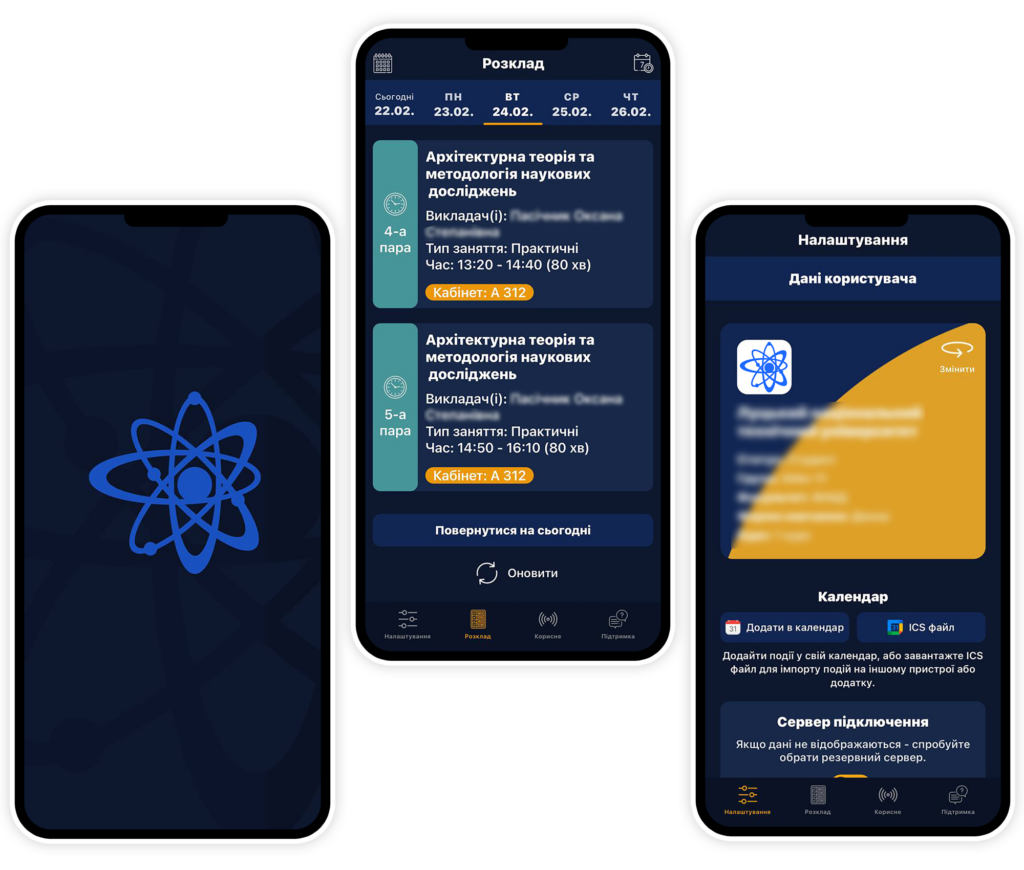
Access to your personal schedule. All events displayed in the calendar can be opened and viewed.
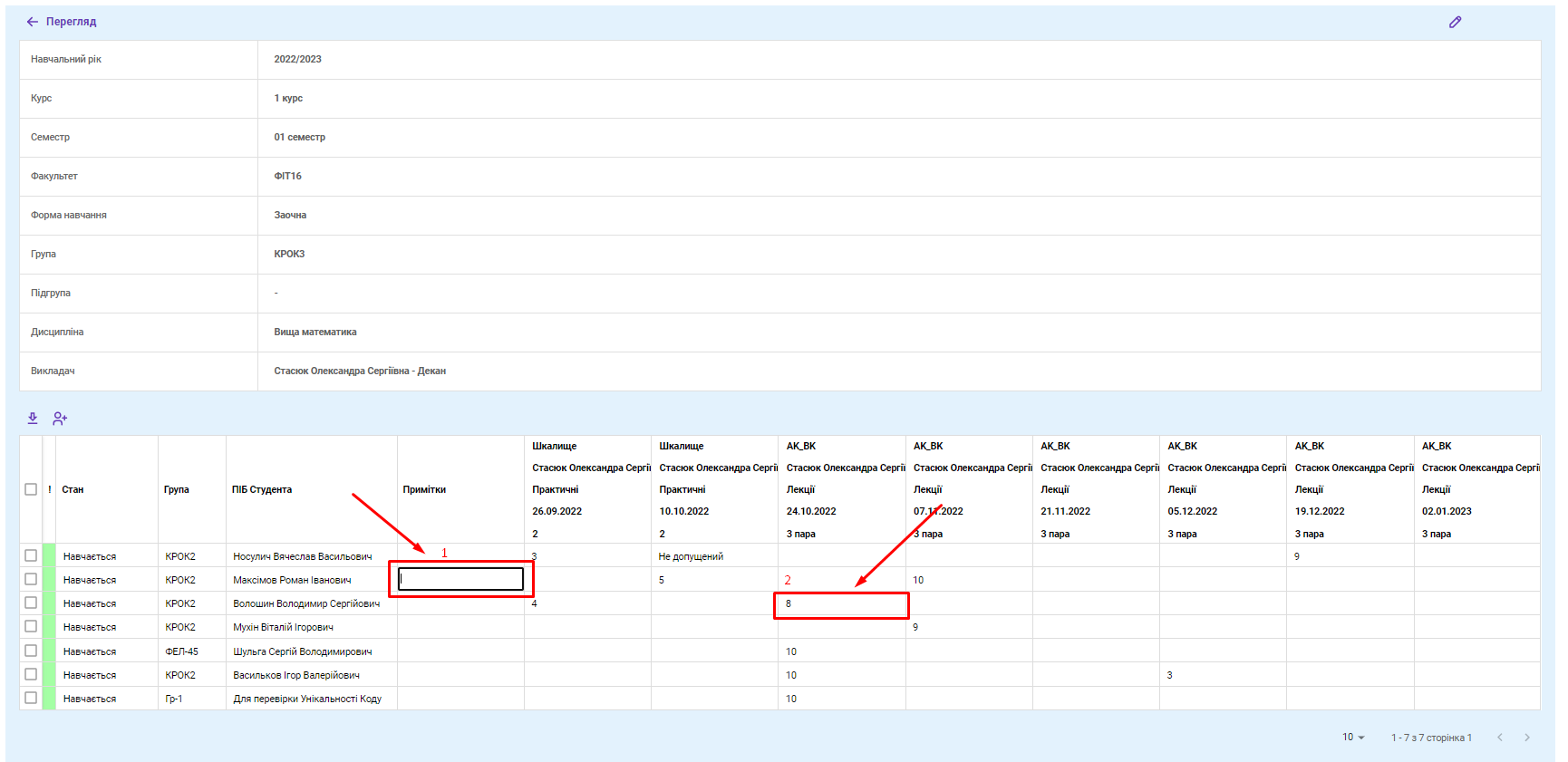
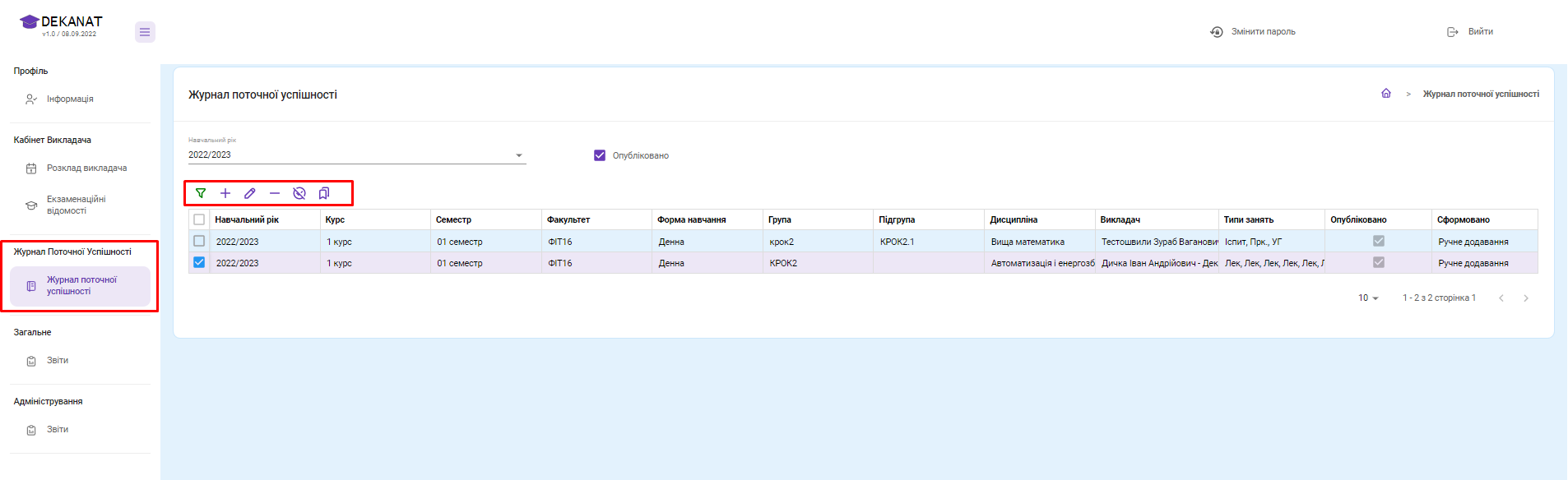
Access to log of current performance. The module is designed to create logs of current performance and provide students with current grades for online classes.

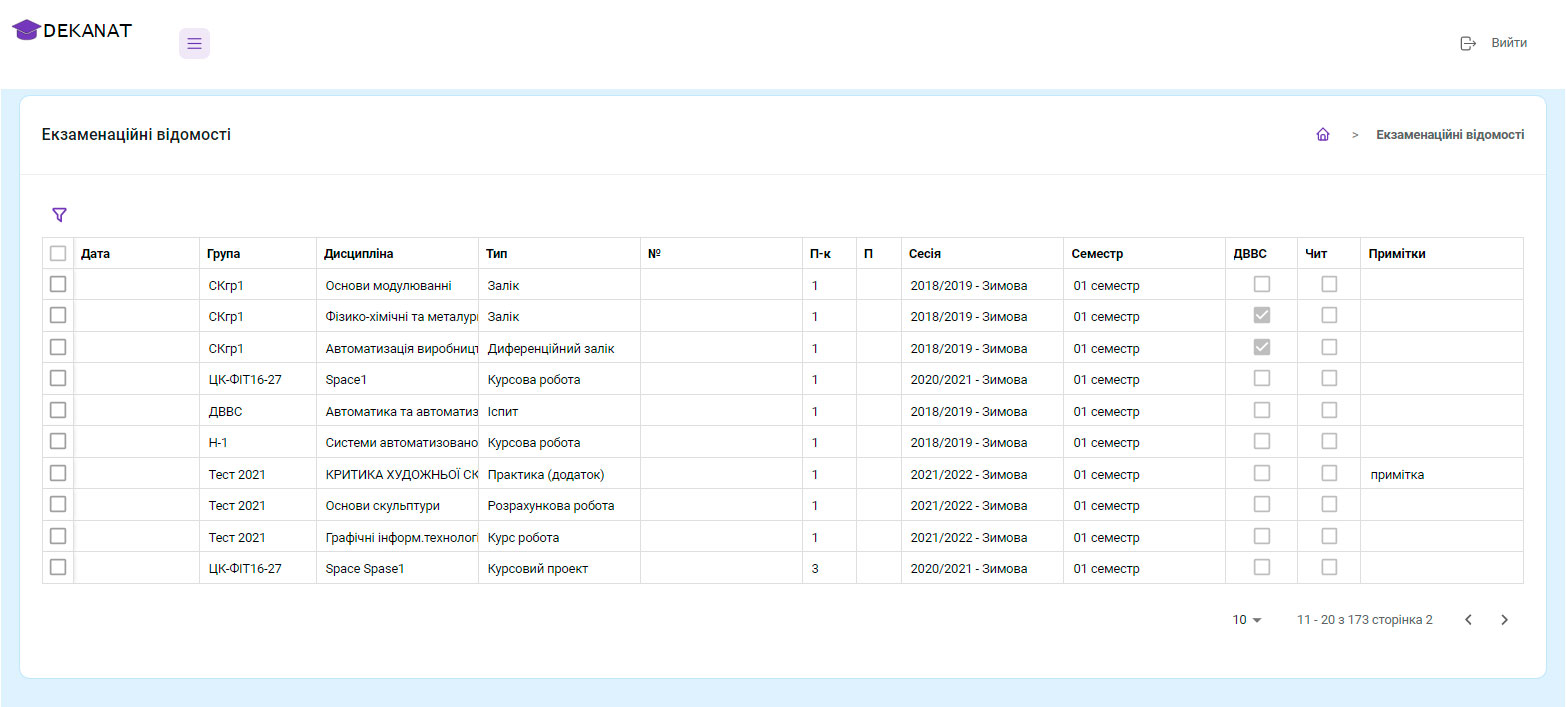
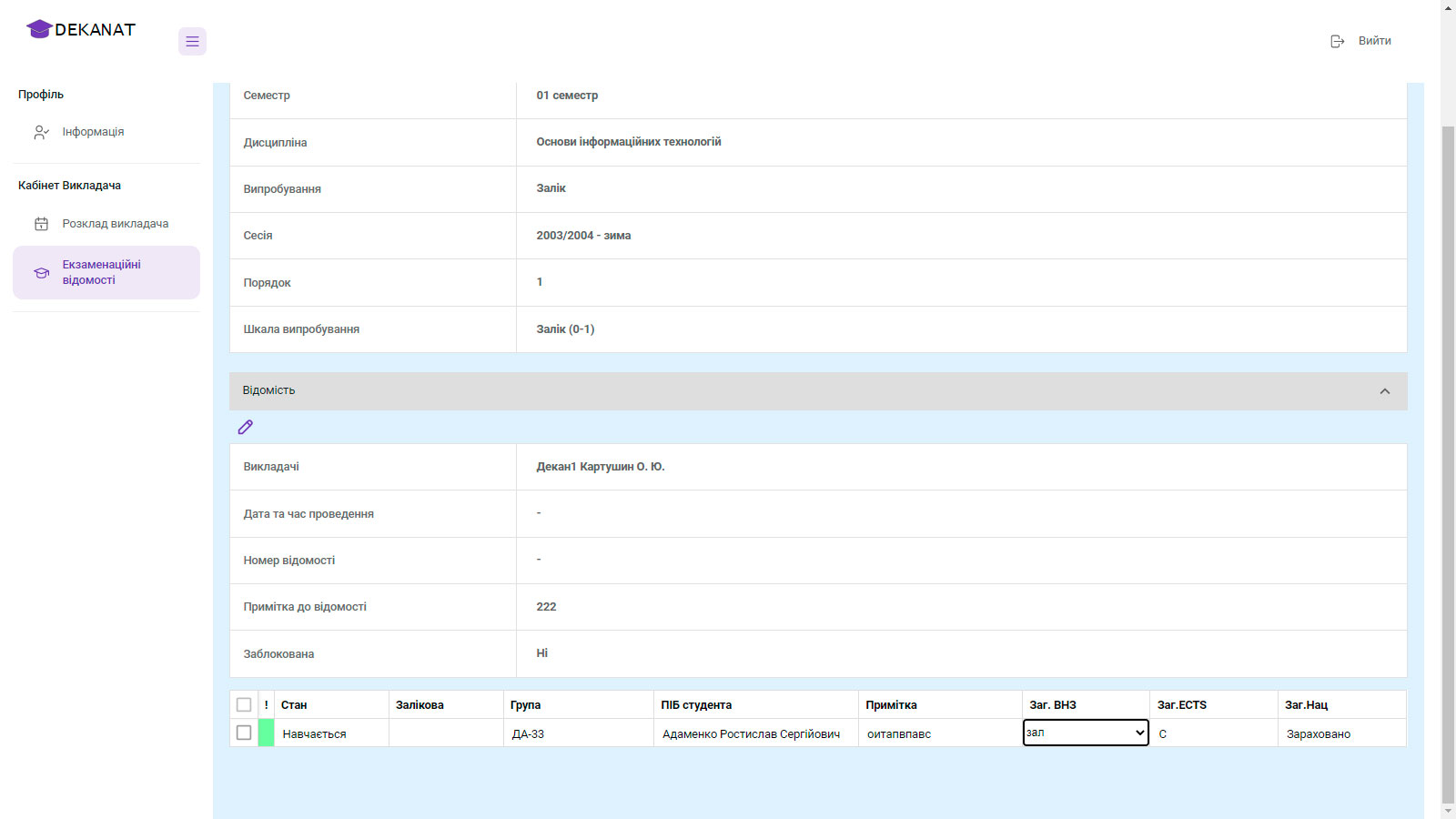
Access to examination information. Only information in which the corresponding user is specified as a teacher is available for editing.
Нові можливості системи

The system includes a module called “Directories”, which combines 50 directories in the following sections: “General”, “Structure of the Higher Education Institution”, “Human Resources Department”, “Curriculum Plans”, “Sessions”, “Schedule”. A convenient navigation page and search are provided for quick access to the necessary information.

The Student Progress Journal provides the role of “Responsible Teacher.” It allows you to manage classes: add, edit, delete, and assign teachers and substitute teachers.

The system allows you to disable the use of test failure reasons. Scores that are lower than the minimum are automatically highlighted in red for quick control.

The web schedule supports day, week, and month views, providing flexibility in scheduling and ease of use for different categories of users.

The “Survey” module is available in the administration section. It allows you to create surveys for the Student Account, analyze the results, and use different types of responses, including “Criteria Sets.”

The module for teaching schedules for subjects under the RNP has implemented filters, field tips, and other interface improvements that significantly simplify the user's work.

In the “Schedule”, “GVD” and “Student Progress Log” modules, only teachers with the “Working” status are available for selection. This helps to avoid errors when assigning.

The background task service automatically sends e-mail notifications in case of errors. This ensures operational control and stability of the system.

Teacher's schedule

The personal schedule of each teacher is available in the online office. When opening the teacher's schedule, the current week is displayed in the calendar by default.

The schedule displays only those lessons that have been assigned to the teacher.

Display of the schedule can be switched by week, month, day, or agenda.

If necessary, the user can switch between previous or next weeks/months/days.

All events displayed in the calendar can be opened and viewed in more detail.

The following information is displayed in the event view:

  • Conducting time
  • Discipline
  • Audience
  • Group
  • Subgroup
  • Form of education
  • Course
  • Description of the lesson

Journal of current performance

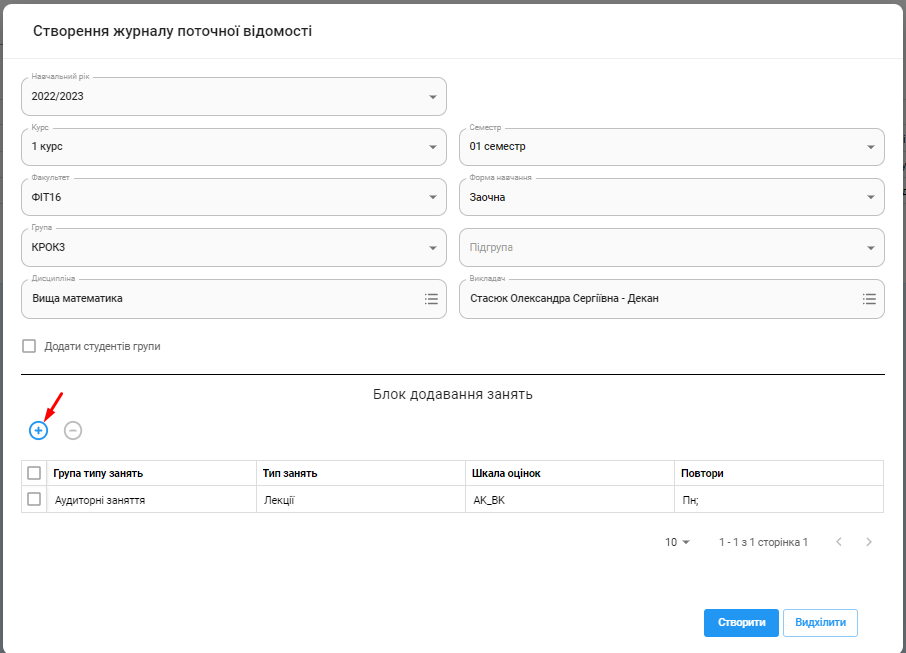
Creating a journal

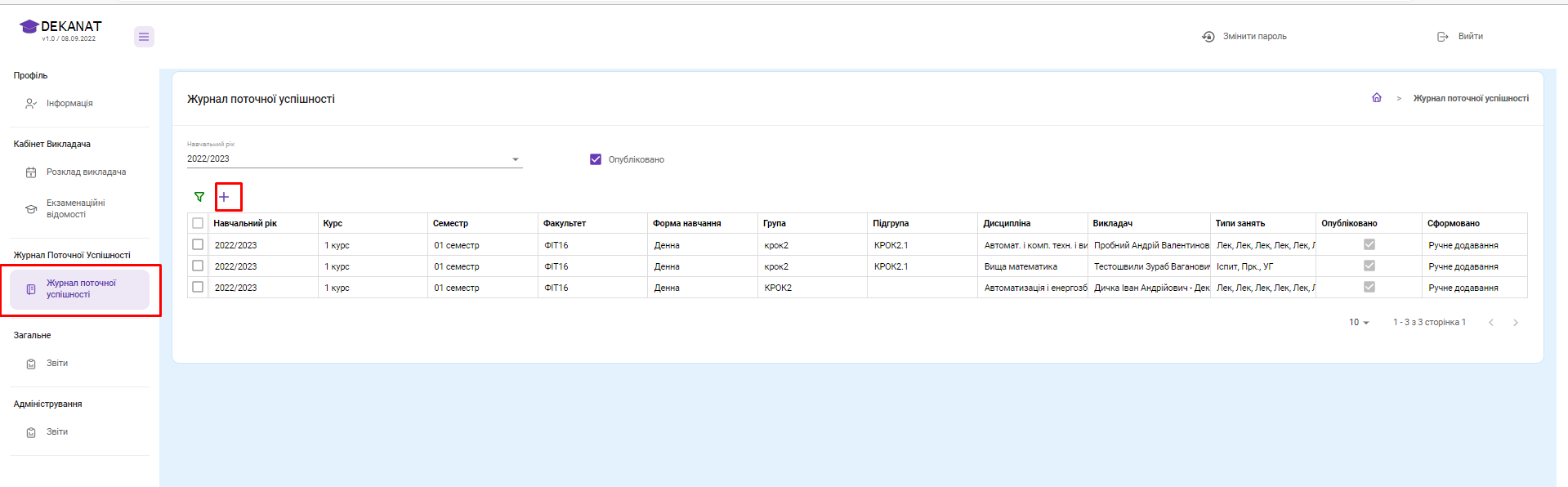
Journals of current success are created by methodologists directly on the web portal and can be implemented for the current and/or future semesters. Magazines of previous years are available for viewing only, they cannot be edited.

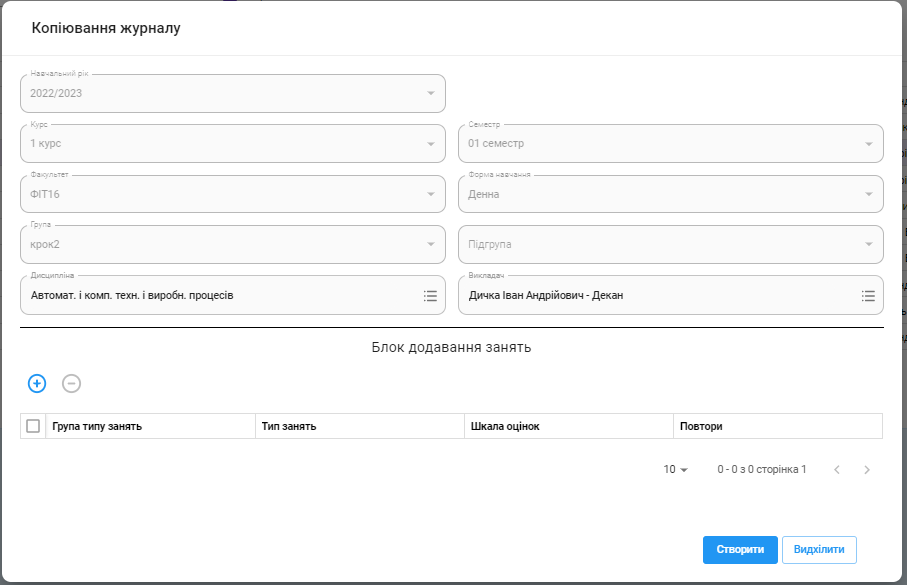
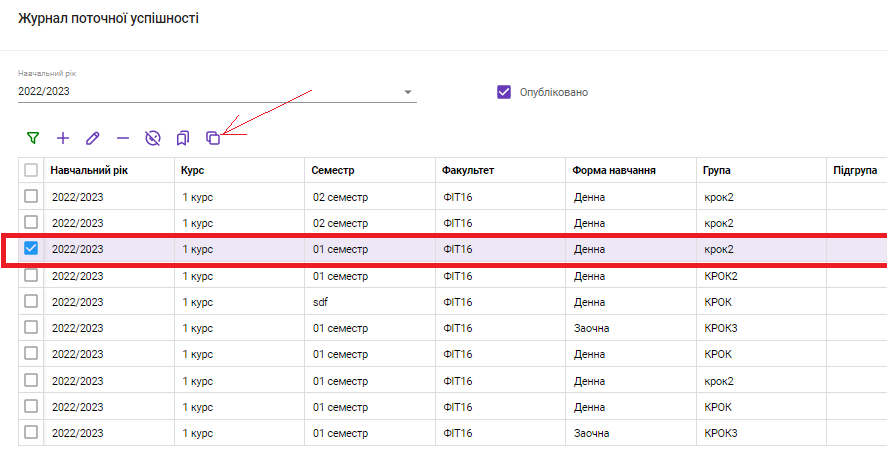
Magazines can be created by copying on the basis of already existing ones already formed in the current academic year.

Editing an existing journal

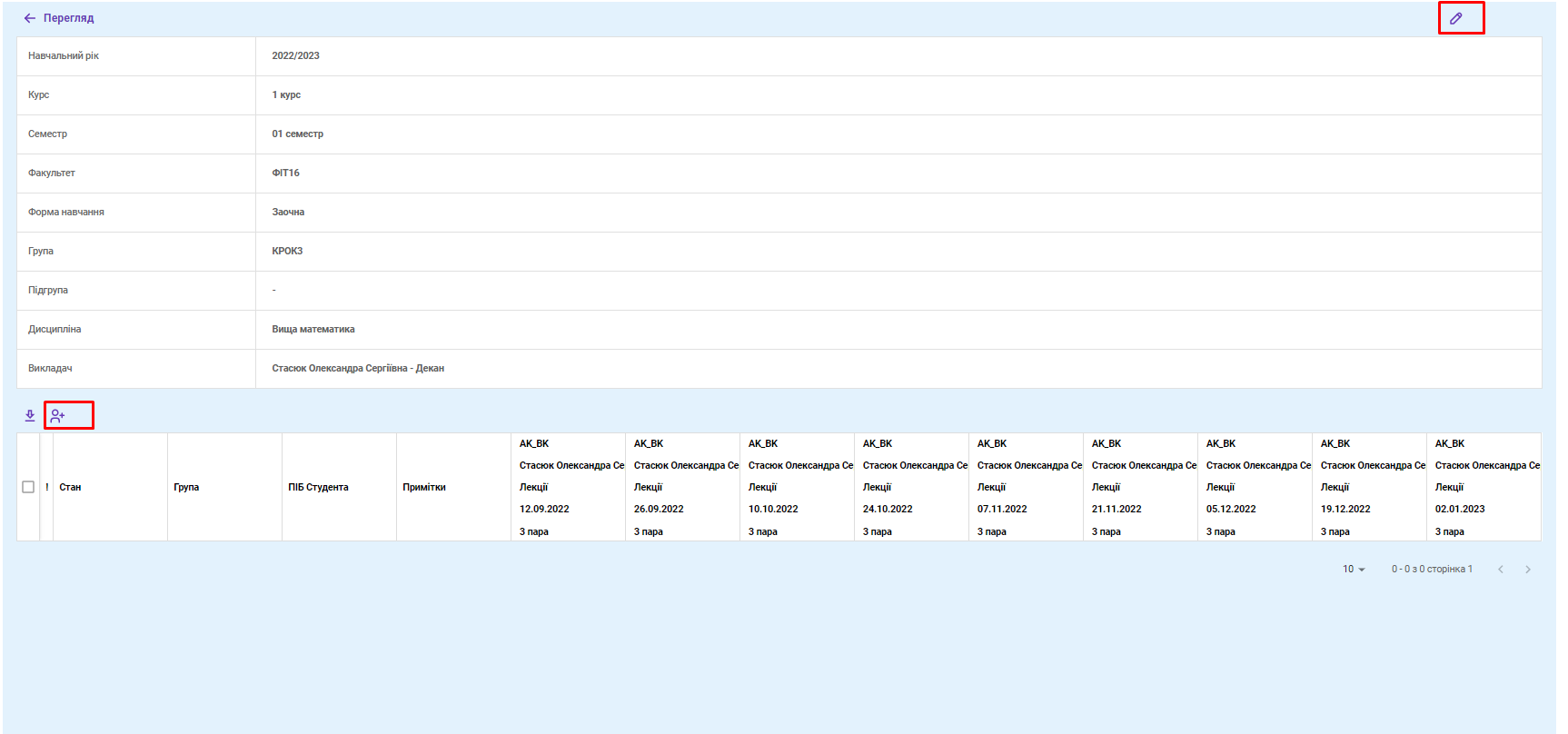
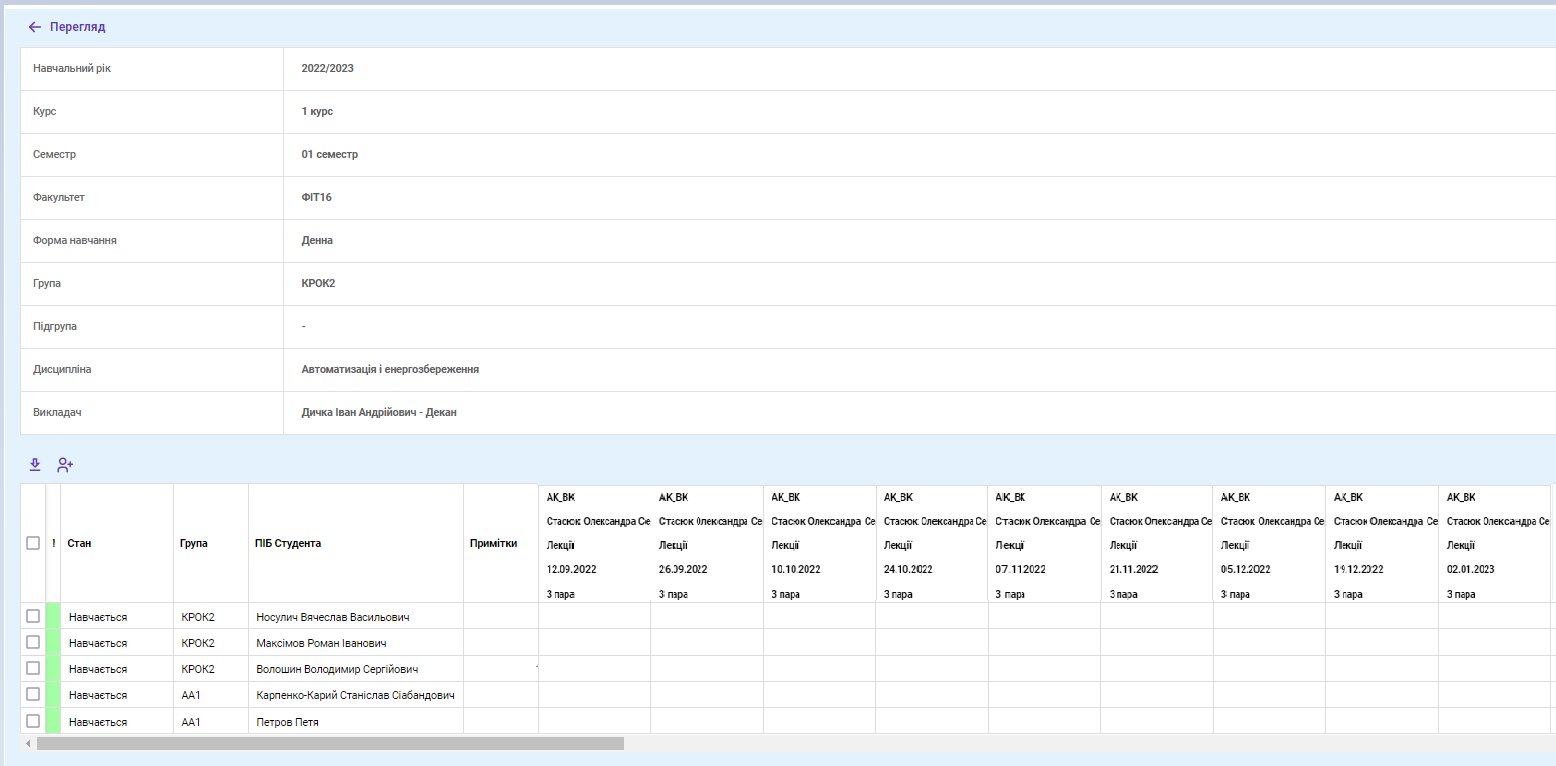
You can edit unpublished journals on the web portal. The log editing window displays the following information: Academic year, course, semester, faculty, form of study, group, subgroup, discipline and teacher.

Work with student cards

Methodist can add and remove students in the log of current performance, which shows the following data: color, state, name, group.

With the help of multiselect, the methodologist can perform group actions with students' cards.

Export to Excel

The function is available to users unloading logs to an Excel file, which contains a list of students with all their classes and grades.

Both the teacher and the methodologist can export the journal to Excel.

Edit classes

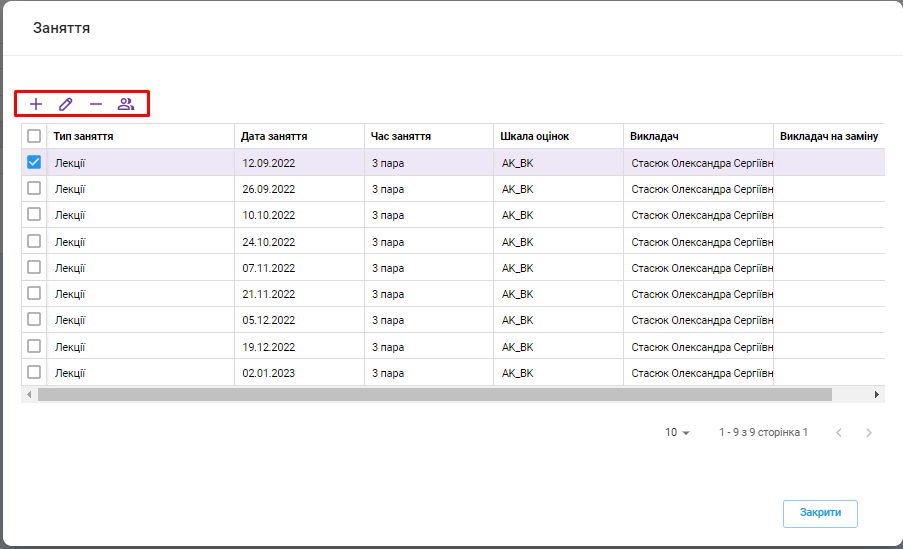
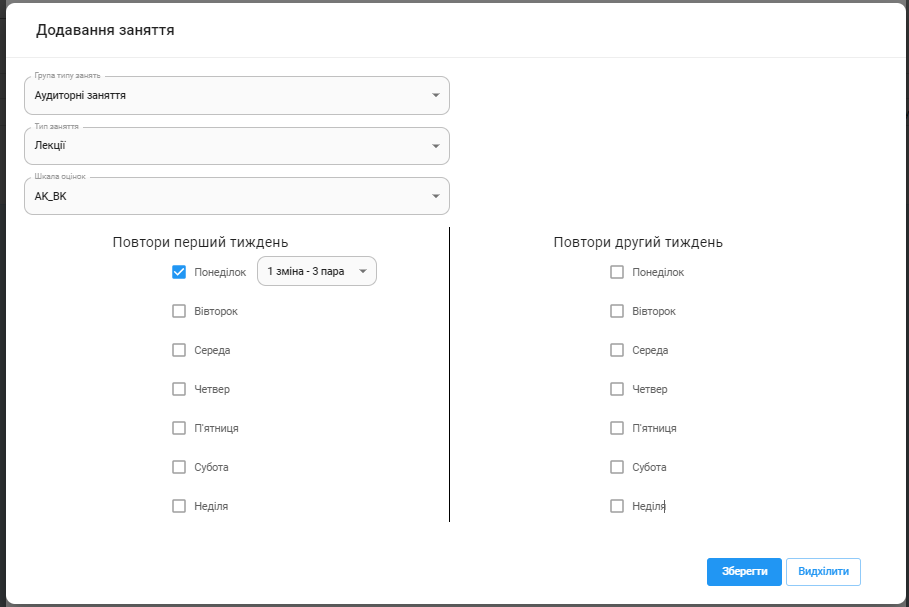
The methodologist and the teacher can edit the lessons through the web portal. In the lesson editing window the following data are available: class type, class date, class time, grading scale, teacher, substitute teacher.

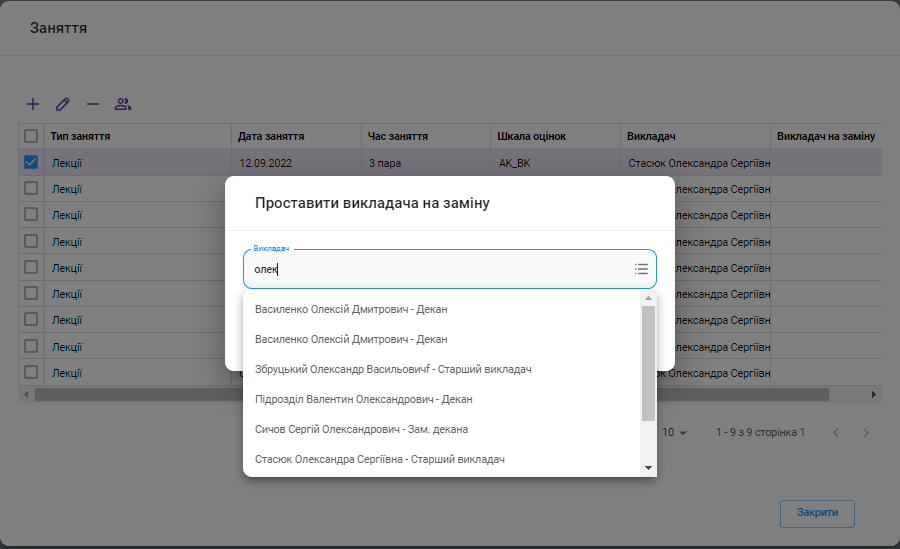
Assigning a substitute teacher

In the personal account, the methodologist can add, edit and delete lessons from the teacher.

Work with the teacher's journal

the teacher available for viewing and editing only published journals in which he is appointed as a teacher or substitute teacher.

Fields are edited directly in the log window, and their list is as follows:

  • Cells about the success and attendance of students - cells in which the teacher assigns grades or notes the presence of students.
  • Notes – text field for entering comments to the student;

The teacher can also edit classes in the magazine, except for appointing a substitute teacher.

Filtering

The following parameters are available for filtering: Academic year, Course, Faculty, Form of study, Discipline, Teacher, Published/Unpublished journals.

Examination information

The section displays a list of exam information that have the following data:

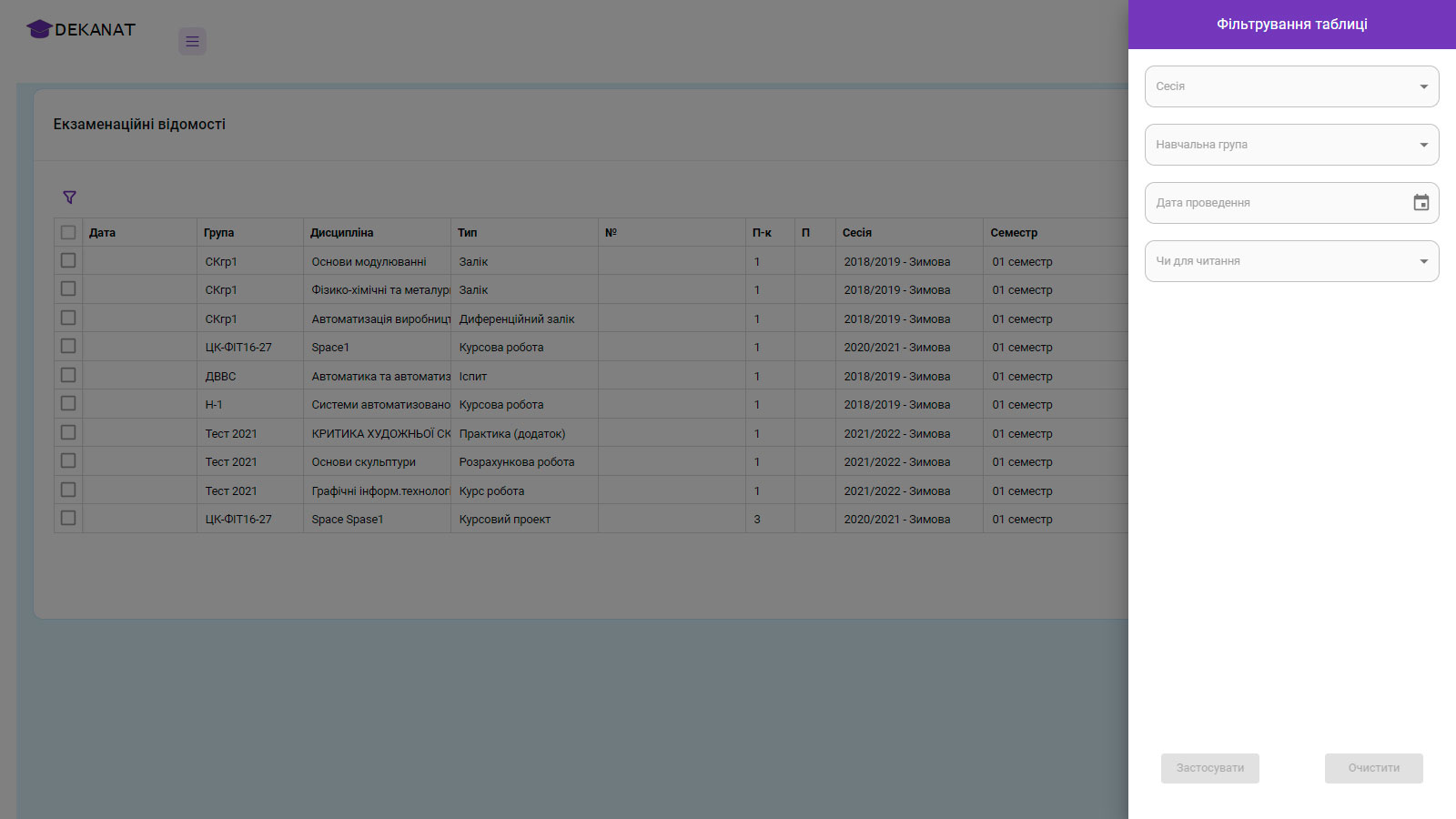
Convenient filter of examination information

For the user's convenience, the web portal is implemented flexible function of filtering by the following fields:

Get test access

Fill out the form to get test access to the web portal.

Marking

On the web portal, the user can assign grades to students. To do this, select a student and select the required values in the drop-down list of the columns Total grade (HEI) or Total ECTS.

The total grade (HEI)/(ECTS) are interdependent fields.

A function has been implemented for ease of editing automatic filling of identical fields according to the entries in the handbook "Relationships of rating scales".

Overall score (National) is set automatically depending on what was entered in the Total grade (HEI)/(ECTS) field.

Sending for redelivery

On the web portal, each user, in accordance with the established access rights, can:

Send the student to retake - if there is a notice for redelivery.

Remove the student from resubmission - the action removes the student from the resubmission information.


How to get a web portal

Fill out the form to receive a unique offer specifically for your ZVO.

Schedule always at hand

Every educational institution that uses the ACS "VNOZ" can receive a Web schedule, and its students and teachers can download the free application "ASU VNOZ. Schedule"

It's easy, just a few simple steps to install the Web Timetable on your school's website so that students and staff can always see their schedule. The module is optimized for all known browsers, so high-quality display of the schedule is guaranteed.

A concise, bright and convenient interface that is understandable to every user. The diverse functionality of the application allows the user not only to view the schedule, but also to find the building and find out the phone number of the educational institution.

Order Web Dean's Office

Leave your message and we will contact you shortly.

Feedback

Leave your message and we will contact you shortly.

Feedback

Leave your message and we will contact you shortly.

Packages of technical support services

Services
Base
Standard
Expanded
Development of new reporting
No
No
Yes
Skype consultations/Working group
No
No
Yes
Consultations by email
No
Yes
Yes
Upgrade to a new version
Yes
Yes
Yes
Forum
No
No
Yes
% from the current cost of the system per year
10%
15%
25%

Free technical support for users of the ACS "VNOZ" is provided within 12 months after the signing of the contract for the purchase of the program.

Dear users! In connection with the growth of the exchange rate, the cost of technical support will be calculated from the current prices for ACS of the university on the day of the conclusion of the contract.

ASU University: Admissions Committee

Leave your message and we will contact you shortly.

ASU of the university: Dean's office

Leave your message and we will contact you shortly.

ASU "VNZ": Full version

Leave your message and we will contact you shortly.

Order a calculation

Leave your message and we will contact you shortly.